Kanban · Release · PR #58 · LIVE
Grid & List file views with nested folders
The project Overview gets two switchable, nesting-aware file views. Each change below has a screenshot and a short video — captured by real end-to-end tests on the production site.
At a glance
- Two views, one toggle — Grid (folder drill-down) & List (collapsible groups), remembered across reloads.
- Real nesting — sub-folders work to any depth in both views.
- Find anything — search, type filter, sort; filtering flattens results across folders.
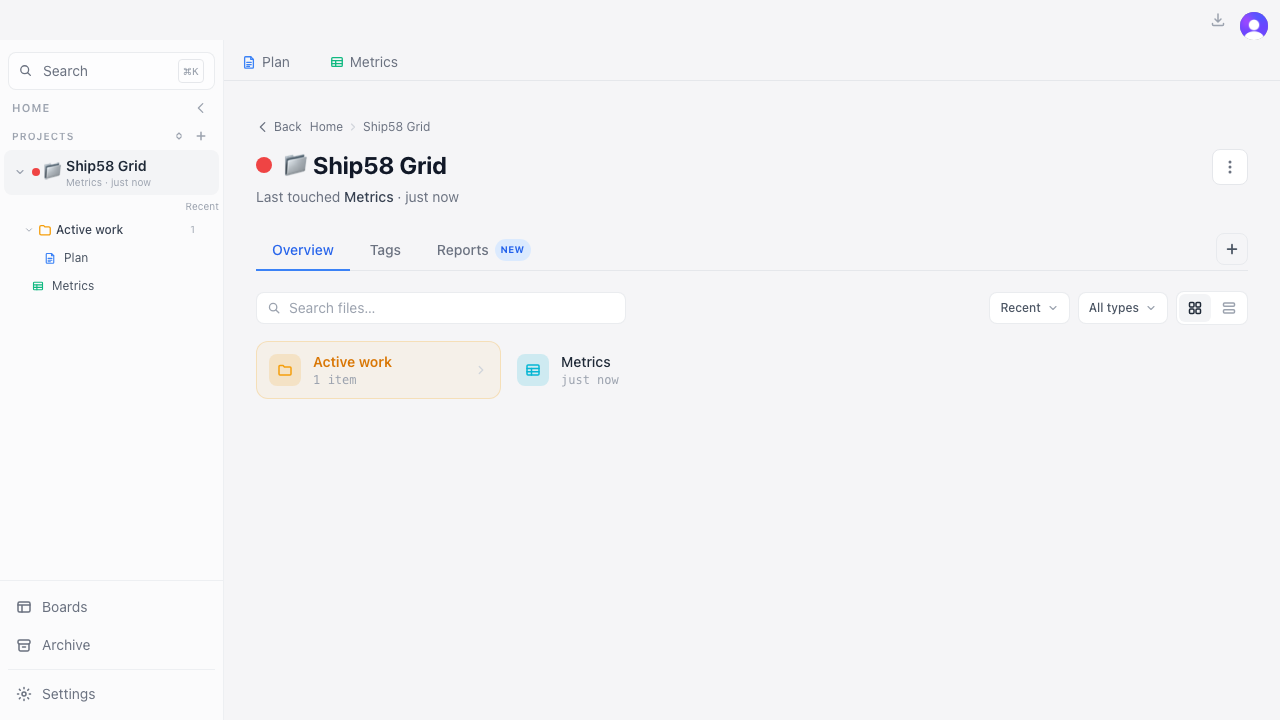
- Clear visuals — color-coded type chips; folders are amber (icon + name).
- No data/schema change — UI only; all group/object actions preserved.
Grid — folder drill-down
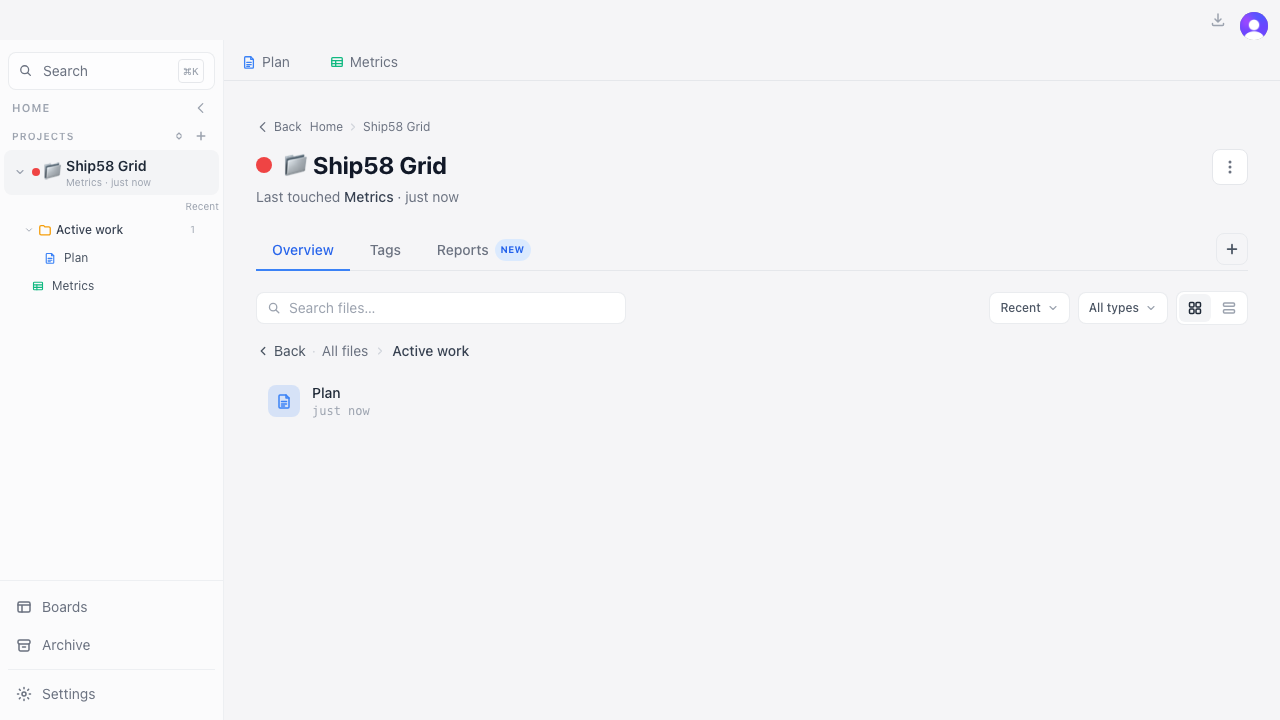
The default view. The current level shows its sub-folders as amber cards, then its files as tiles. Click a folder to enter it; a breadcrumb (All files › Active work) walks back up. Works to any nesting depth — like a file browser.
Video · opening the project and drilling into a folder
- Open a project → folder cards + file tiles appear.
- Click a folder → drills in with breadcrumb + Back; click a file → it opens.
List — collapsible nested groups
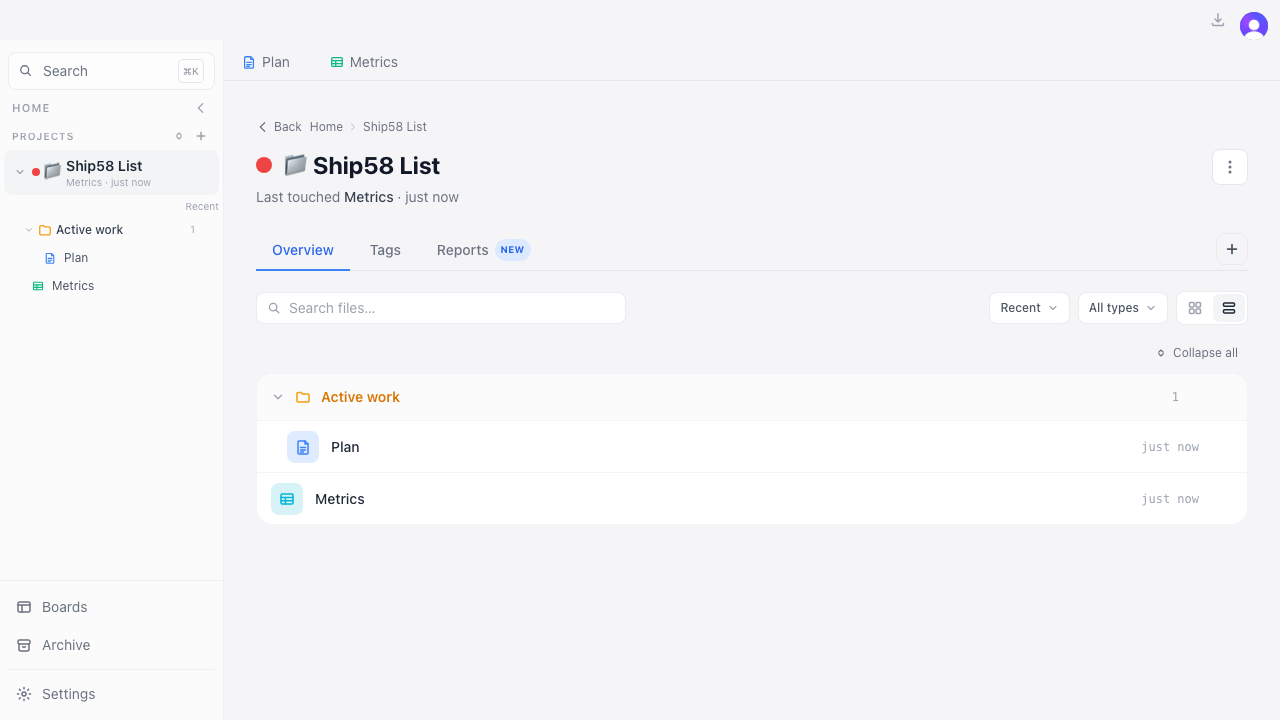
Each group (any depth) is a collapsible header with its files indented beneath; sub-groups nest recursively. “Collapse all / Expand all” toggles everything at once; loose root files sit at the bottom.
Video · collapsing and expanding all groups
- Toggle to List → groups with nested sub-groups, indented files.
- Click a header to collapse/expand; “Collapse all” toggles every group.
Toolbar — search · filter · sort
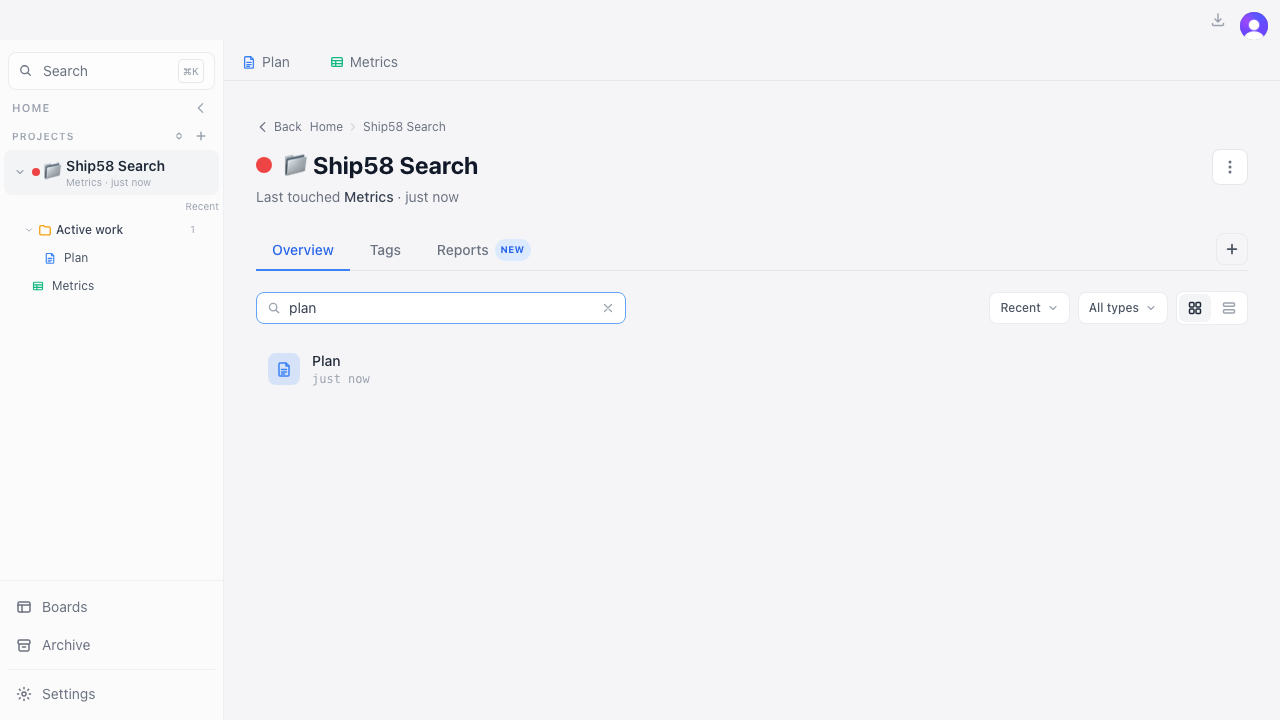
Search files by name, filter by type (Boards / Docs / Tables / Lists / Links), and sort by Recent or Name. While a search or type filter is active, both views flatten to matching results across all folders — so a deeply-nested file is still findable.
Video · typing a search → nested file surfaces flat
- Type in search → only matching files show, flattened out of folders.
- Pick a type / change sort → list narrows / reorders accordingly.
Type chips & amber folders
Every object carries a distinct, color-coded chip (board · doc · table · list · links). Folders are amber — both the icon and the name — in both views, so a folder reads as a folder at a glance.
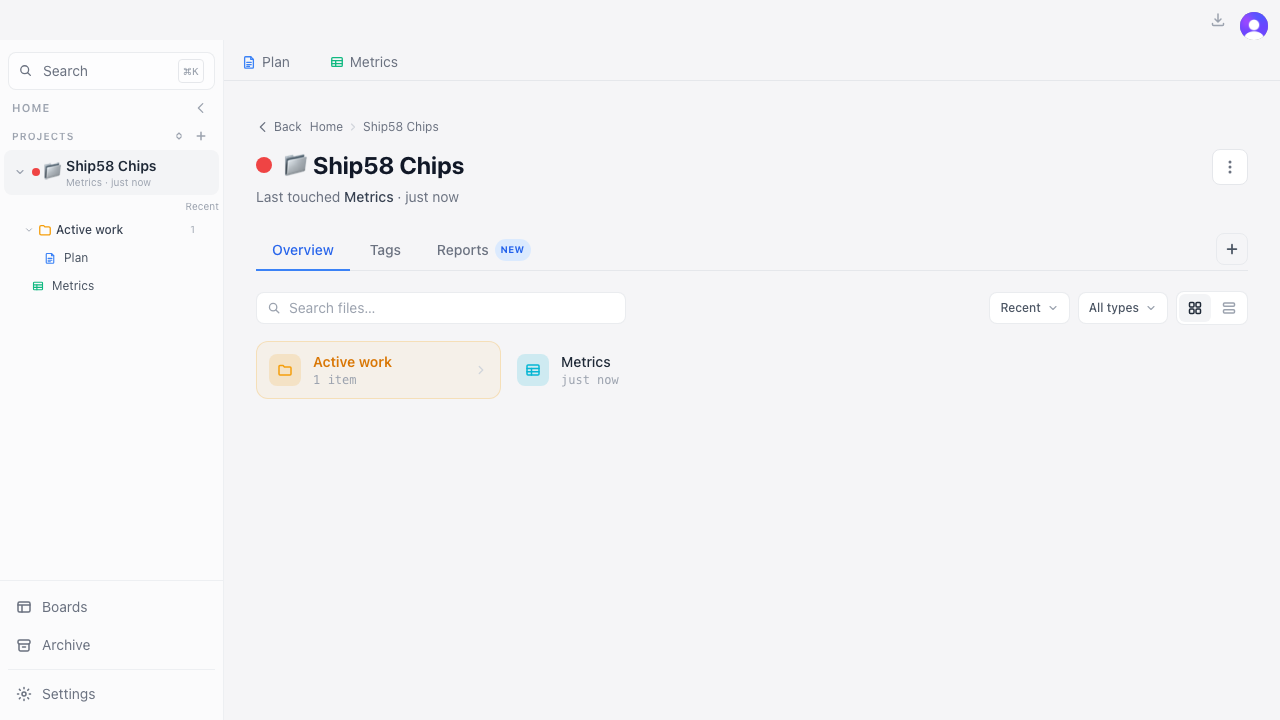
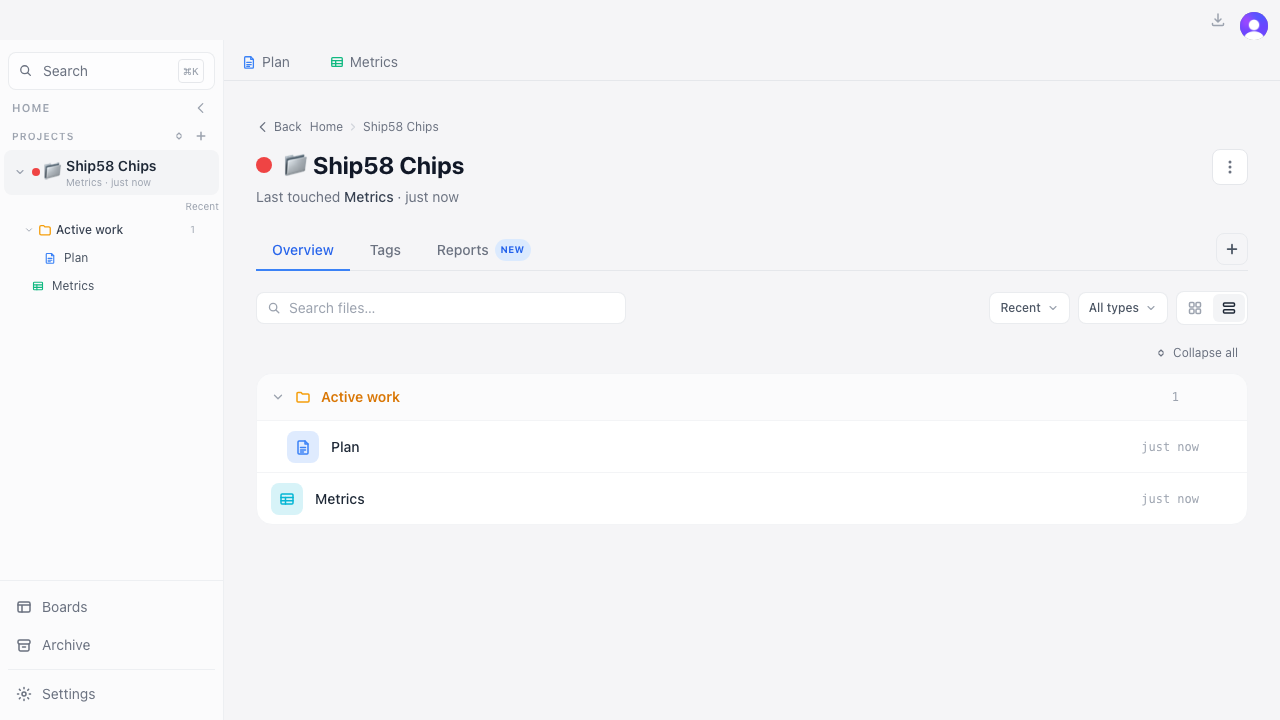
Video · the same files across Grid and List
- Chips are color-distinct per type; folder icon + name are amber in both views.
Existing flows still work
- Create object/group via the “+” and per-folder add menus → lands in the right group.
- Group rename / delete / new subgroup; object move / rename / delete.
- The breadcrumb folder deep-link opens the List view focused on that folder.
- Reminders excluded from these views by design — still on the Reminders page.
kanban · update-app ship report · PR #58 · b23ccc1 · prod e2e